| burwenbobcat.com |

| BURWEN BOBCAT MONITOR INSTRUCTIONS |
Version 1.01BBMON
Copyright © 2010, Burwen Technology, Inc.
Patent pending
Copyright © 2010, Burwen Technology, Inc.
Patent pending
BURWEN BOBCAT MONITOR processes 3 stereo channels, or 1 to 8 analog inputs. It delivers up to 7.1
channels, DirectX plugs into 32-bit audio editors, and records, plays, and converts up to 8 channels. It also
plugs into the Windows Media Player.
channels, DirectX plugs into 32-bit audio editors, and records, plays, and converts up to 8 channels. It also
plugs into the Windows Media Player.
MINIMUM SYSTEM REQUIREMENTS
- 3 GHz Pentium 4 processor, or 1.66 GHz Intel Duo processor
- Firewire (IEEE 1394)
- FireWire Audio Interface, Mark of the Unicorn, MOTU 828MK3
- Firewire cable for Notebooks, Comprehensive FW6PFW4P25S 6 pin to 4 pin, if applicable
- Microsoft Windows XP, Vista (32-bit only), or Windows 7. DirectX plugs into 32-bit programs only.
- For Windows XP only, Microsoft .Net Framework 2 – may be downloaded from Microsoft at:
- Latest Windows updates
- CDROM or CD/DVD drive
- Windows Media Player 11 or 12 – may be downloaded from Microsoft at:
MOTU 828MK3 INSTALLATION
Download and install the latest MOTU driver software for your product from the MOTU website. Follow the on-screen prompts and
select installation of FireWire USB Drivers. Allow restart at Finish.
START THE MOTU 828MKII
Connect your audio inputs and outputs according to the following: For single-ended systems it is OK to use mono phone plugs
which short one side of the audio output to ground.
Download and install the latest MOTU driver software for your product from the MOTU website. Follow the on-screen prompts and
select installation of FireWire USB Drivers. Allow restart at Finish.
START THE MOTU 828MKII
Connect your audio inputs and outputs according to the following: For single-ended systems it is OK to use mono phone plugs
which short one side of the audio output to ground.
- FL Front Left
- FR Front Right
- FC Front Center
- Input: AUX, Output: SUBW, (Subwoofer)
- RL Rear Left
- RR Rear Right
- SL Side Right
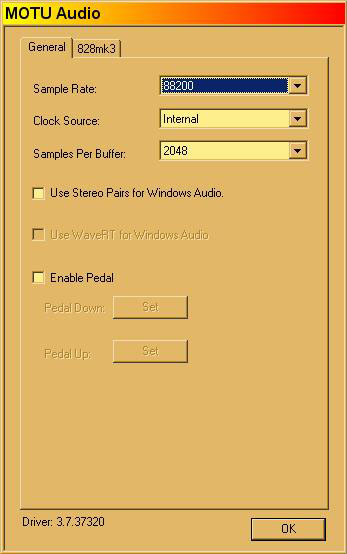
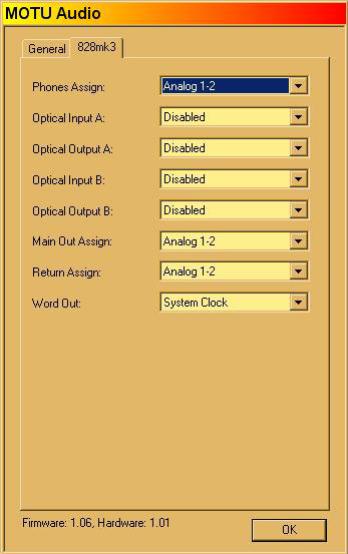
- Connect the Firewire cable. Then power on the MOTU 828MK3 to install its driver. If hardware detection opens a dialog
box, when asked, select “Continue Anyway”. - Go to Start, All Programs, MOTU, MOTU Audio Console and click to open. Set the options as below.
OPTIMIZE YOUR COMPUTER
BURWEN AUDIO needs all the processing power it can get, without interruptions from non-vital computer operations or automatic
updates of other programs. For highest reliability do not run other programs.
UNDER CONSTRUCTION
BURWEN AUDIO needs all the processing power it can get, without interruptions from non-vital computer operations or automatic
updates of other programs. For highest reliability do not run other programs.
- Go to Start, Control Panel, System, Advanced System Settings, System Properties, Advanced, Performance Options, Visual
Effects, and click Adjust for best performance. - From the same Performance Options tab click the Advanced tab and there click Background Services and System Cache
(if available). You can restart later. - Go to Start, Control Panel, Windows Updates, turn off automatic updates. Update manually once in a while to protect your
computer. - Go to Start, Control Panel, Sound, and select MOTO Analog for both of the default playback and recording devices. Click
on the Sounds tab and select No Sounds. For two channels select your computer's sound card or external DAC. - In all your programs that update, such as Norton Internet Security, set updates at manual instead of automatic.
UNDER CONSTRUCTION
- Go down to your taskbar and right click on a blank area. Click Properties, and check Auto-hide the taskbar, Keep the
taskbar on top of other windows, Show Quick Launch, Show the clock, and Hide inactive icons. Click Customize. Go
through the entire list and choose “Always Show” for Burwen Audio, your network such as Local Area Connection, Power
Options as shown by a power plug or battery and any other items of interest to you. Click OK, then OK to close Properties.
- 3. Go to Start, Control Panel, Sounds and Audio Devices, Audio and select your computer's internal
- audio for both the default playback and recording devices. On the Sounds tab select “No Sounds”.
- You can select MOTU AUDIO if you want sounds from internet websites to play on your main audio
- system, but expect to get blasted by full level sounds.
- 4. Go to Start, My Computer, C:\BURWEN AUDIO\Theme and double click Burwen.Theme. This
- will open Display Properties. The Burwen theme establishes the colors of the Audio Splendor
- controls and installs the "Black Security" screen saver which is useful when watching movies. You
- can shut off “Black Security” by selecting “None”. Do not use any other screen saver. Choose a
- different Desktop background if you prefer, using the Display, Desktop tab.
- 5. In all your programs that update, such as Norton Internet Security, set updates at manual instead
- of automatic.
- 6. Go to Start, All Programs, Burwen Audio, and click to open Burwen Audio (Last settings). Its four
- speaker icon should appear at the right end of your Taskbar. In the next step it will be set to
- always show.
- 7. Go down to your Taskbar and right click on a blank area. Click Properties, and check every box
- except Lock the Taskbar. Click Customize. Go through the entire list and choose Always
- Show for Burwen Audio, your network such as Wireless Connection 1, Power Options as shown
- by a power plug or battery and any other items of interest to you. Click OK, then OK to close
- Properties.
- 8. Right click on the Burwen Audio icon at the right of the Taskbar and choose Exit. Burwen
- Audio normally opens from the Analog button in Excel, but you have to close it this way.
- 9. If you have an Excel 2003 icon on your desktop, click and drag it to the Quick Launch area of your
- Taskbar next to the Start button. Drag the Windows Media Player icon there too. If either icon is
- not on your desktop, find the Windows Media Player at Start, All Programs, Accessories,
- Entertainment, Windows Media Player. Right click to copy; and paste a shortcut on your desktop.
- Excel is at Start, All programs, Microsoft Office, Microsoft Excel 2003. You can sort your desktop
- icons by type by right clicking on the desktop.
- 10. Resize the Taskbar to accommodate two or three rows of buttons by dragging its top edge.
- Similarly make the Quick Launch area wide enough to view all its icons. Then right click in a blank
- area and lock the Taskbar.
- 11. If you like to tweak computers, open Internet Explorer and go to
- http://www.burwenaudio.com/Questions_and_Answers.html where you can link to “PC Audio
- Optimization_Rev2005.pdf” which recommends additional setup changes that may help a little.
- Otherwise, you have done enough with steps 1 through 5.
- Go down to your taskbar and right click on a blank area. Click Properties, and check Auto-hide the taskbar, Keep the
taskbar on top of other windows, Show Quick Launch, Show the clock, and Hide inactive icons. Click Customize. Go
through the entire list and choose “Always Show” for Burwen Audio, your network such as Local Area Connection, Power
Options as shown by a power plug or battery and any other items of interest to you. Click OK, then OK to close Properties.
SET UP WINDOWS MEDIA PLAYER
- Click on the Windows media player icon next to the Start button on your Taskbar, to open it.
- On the topmost menu click on Tools, Options, Devices, Speakers, Properties. Select Default Direct
Sound Device. Check Use 24-bit audio for audio CDs. Click OK.
files are in E:\MUSIC BOBCAT, and 32-bit AUDIO SPLENDOR processed multi-processed MP3 files are in E:
\MUSIC BOBCAT, and 32-bit AUDIO SPLENDOR processed multi- processed multi-channel WAV files are in
E:\MUSIC\DEMO. If all these folders are listed in Monitor channel WAV files are in E:\MUSIC\DEMO. If all
these folders are listed in Monitor Folders, they can Monitor Folders, they can be conveniently grouped by
clicking on the top of a column to sort by be conveniently grouped by clicking on the top of a column to sort
by Subtitle or Bit Rate. At other Subtitle or Bit Rate. At other times you may want to remove all but the
folder of interest in Monitor times you may want to remove all but the folder of interest in Monitor Folders,
so the files will be played with the correct processing. Folders, so the files will be played with the correct
processing.played with the correct processing.
HELP AND SUPPORT
Burwen Technology, Inc.
12 Holmes Road
Lexington, MA 02420-1917
Email: contact@burwenbobcat.com
Websites: www.burwenaudio.com
www.burwenbobcat.com
Burwen Technology, Inc.
12 Holmes Road
Lexington, MA 02420-1917
Email: contact@burwenbobcat.com
Websites: www.burwenaudio.com
www.burwenbobcat.com
INSTALLATION AND ACTIVATION
First download and install all the Microsoft requisites above Including Windows updates.
First download and install all the Microsoft requisites above Including Windows updates.
Copyright 2010 Burwen Technology, Inc. All rights reserved.
- Place the setup utility BBMONsetup.exe in a new folder C:\BURWEN BOBCAT. Be sure your Internet connection is still
working. From the Start button, open My Computer, Local Disk (C:) and locate BBMONsetup.exe. - Double click, BBMONsetup.exe. If Windows asks, allow the program to RUN..
- Follow the instructions in the installer window and after finish, allow your computer to reboot.
- After rebooting, go to Start, Programs Burwen Audio, Activate Burwen Audio, and click on the top line to select internet
activation. - Find your serial number in the Email you received earlier from sales@burwenbobcat.com having the subject line "Your
Burwen Software Serial Number". - Instead of typing your Serial Number, for perfect accuracy, you can hold down the left button while sliding the cursor over
all the letters and numbers of the Serial Number. Release the button. Press CTRL+C to copy to the Clipboard, and then
paste the number at the cursor in the Serial Number field, using CTRL+V. - Fill in the information requested by the Wizard, click next, and your information will be sent encrypted to the Burwen
activation server for verification with your order. - Upon receiving and verifying your information the Burwen activation server gets an identification number (ID) from your
computer and returns an unseen key number that automatically enables your software indefinitely, but only on your
computer. Installation finishes and you can use your new software. - Burwen Bobcat software has been completely installed at the end of this process. When opened, It will process audio only
if it has been activated. If a valid license key has not been received and accepted, a red notice in the Burwen Bobcat
window will offer a link to the Bobcat Activation window.
OPERATION
BURWEN BOBCAT MONITOR operates in 3 different modes.
Open only one at a time.
As a plug-in for Windows Media Player 11 or 12, Open the Windows Media Player by inserting a CD or DVD in the drive or by
double clicking its icon. Go to the menu item View, Plug-ins, Other, Burwen Bobcat and click to place a check mark at Burwen
Bobcat. The BURWEN BOBCAT window will open. At the bottom of the window you can navigate to Basic Bobcat, Big Bobcat, or
the multichannel Monitor window.
If the menu is not visible, in Windows Media Player 11, open the Library window and click the leftmost of two down arrows next to
the search box at upper right. Click Show Classic Menus. in Windows Media Player 12, open the Library window and click
Organize, Layout, Show Menu Bar.
To process or record analog input, open the BURWEN AUDIO window from the Start button, Programs, Burwen Audio.
BURWEN AUDIO provides the same 3 windows as the BURWEN BOBCAT plug-in for the Windows Media Player. The only
difference is the name in the title bar. Choosing Start, Programs, Burwen Audio, Burwen Audio Last Settings will open the
program with the same sound you were using when you last closed the program.
The 5-speaker BURWEN AUDIO icon will appear at the right end of your taskbar. Right click on it to Show BOBCAT (the BURWEN
AUDIO WINDOW), the Burwen Recorder-Player, or to set Options.
Multichannel use requires installation and setup of a MOTU 828MK3 Audio Interface. Otherwise it can work in 2 channels using
your computer's sound card or an external DAC. To mate with some sound cards, download and install ASIO4All at
http://www.asio4all.com/ .
As DirectX plug-in for your audio editor, while editing a track select among plug-ins - BURWEN BOBCAT FILTER. The
BURWEN BOBCAT window will open.
Open only one at a time.
As a plug-in for Windows Media Player 11 or 12, Open the Windows Media Player by inserting a CD or DVD in the drive or by
double clicking its icon. Go to the menu item View, Plug-ins, Other, Burwen Bobcat and click to place a check mark at Burwen
Bobcat. The BURWEN BOBCAT window will open. At the bottom of the window you can navigate to Basic Bobcat, Big Bobcat, or
the multichannel Monitor window.
If the menu is not visible, in Windows Media Player 11, open the Library window and click the leftmost of two down arrows next to
the search box at upper right. Click Show Classic Menus. in Windows Media Player 12, open the Library window and click
Organize, Layout, Show Menu Bar.
To process or record analog input, open the BURWEN AUDIO window from the Start button, Programs, Burwen Audio.
BURWEN AUDIO provides the same 3 windows as the BURWEN BOBCAT plug-in for the Windows Media Player. The only
difference is the name in the title bar. Choosing Start, Programs, Burwen Audio, Burwen Audio Last Settings will open the
program with the same sound you were using when you last closed the program.
The 5-speaker BURWEN AUDIO icon will appear at the right end of your taskbar. Right click on it to Show BOBCAT (the BURWEN
AUDIO WINDOW), the Burwen Recorder-Player, or to set Options.
Multichannel use requires installation and setup of a MOTU 828MK3 Audio Interface. Otherwise it can work in 2 channels using
your computer's sound card or an external DAC. To mate with some sound cards, download and install ASIO4All at
http://www.asio4all.com/ .
As DirectX plug-in for your audio editor, while editing a track select among plug-ins - BURWEN BOBCAT FILTER. The
BURWEN BOBCAT window will open.
If the Registration Wizard displays an error message and offers Email activation, click OK. An Email message can be composed
and sent automatically to the Burwen activation server, or you can compose and send it manually with help from the Wizard.
and sent automatically to the Burwen activation server, or you can compose and send it manually with help from the Wizard.
- To send the Email automatically, just click Next, then Finish. This procedure may open security dialog boxes including one
that says another program is trying to use one of your email accounts. Allow sending for at least 2 minutes. Then click
Yes to close the dialog box. - If sending from Burwen Bobcat is blocked, the Wizard helps you compose and send a message from your own Email
program. Simply open a New message and follow the steps to paste the To address, the Subject, and the Body into your
Email. The Body message is encrypted. - After sending, you will receive an Email reply with your Casper License key number in a few minutes. If there is a technical
problem it might take a few days. - When you receive your license key, keep the Email open. Go to Start, All Programs, Burwen Bobcat, and click Activate
Bobcat. This will open the Bobcat Activation window which offers three methods for activation. - As you already have your license key, click the second line to open a window for entering your license key (Site key). You
can type it manually or copy it from the Email and paste it at the cursor. - To copy from the Email, hold down the left button while sliding the cursor to select all the letters and numbers of the code.
Release the button. Press CTRL+C to copy, and then paste the number at the cursor in the serial number field, using
CTRL+V. Click Activate.
IF ACTIVATION FAILS
- Be sure your Internet service is working and any Email you tried to send is not still in your Out Box. The Casper License
reply from the Burwen activation server will tell you if the serial number you entered does not match that on record. If both
Internet and Email communication failed to produce a reply there may be a problem with your Email account, Internet
service, network settings, or Internet security software settings. - Go to Start, All Programs, Burwen Audio, and click Activate Burwen Audio This will open the Burwen Audio Activation
window which offers three methods for activation. Try the first method which opens the Registration Wizard again and
repeat the steps above. If Internet registration fails try manual Email in the Wizard. If you receive your license key (Site
key) code click line 2 to open the window for entering the key. - If none of the fast Internet or Email activation methods work after at least 3 tries, click line 3 to use the slower Email
registration method.
 |